
How to Batch Update Your GIF Library Without Chaos
Add, rename, and clean up many GIFs at once without breaking your search system or filling the library with duplicates.
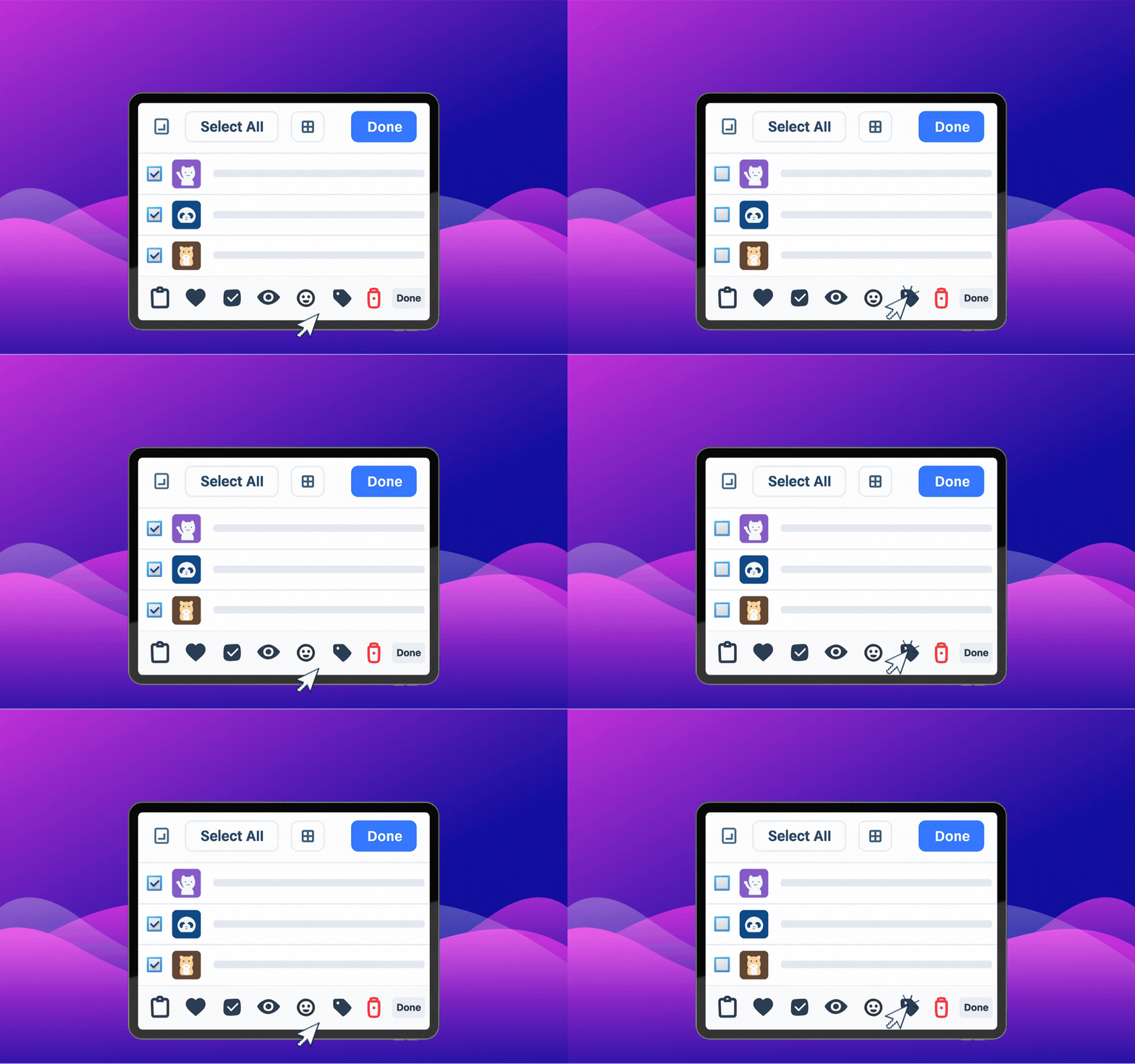
Batch updates save time, but only if you have a rule for what gets added and what gets rejected. Otherwise, you just scale your mess faster.
Make one pass for naming first
Before sorting anything into folders, fix the basics:
- rename weak filenames
- remove obvious duplicates
- flag files with unclear context
This keeps the later cleanup much smaller.
Update in small themed groups
Work in sets like:
- celebration GIFs
- meeting reactions
- support replies
- follow-up reminders
Smaller groups make it easier to spot overlap and keep tone consistent.
If your team shares the same collection, use the rules in how to build a shared team GIF library.
Keep a short review checklist
For each incoming GIF, ask:
- will we use this again next week?
- is the reaction obvious without context?
- does this replace something weaker we already have?
That last question matters most. A clean library grows by replacement, not just by accumulation.
FAQ
How often should I do a batch update?
Once a week or once every two weeks is enough for most personal or team libraries.
Should I keep old versions after renaming?
Usually no. If the content is the same, keep one clean version and remove the rest.