
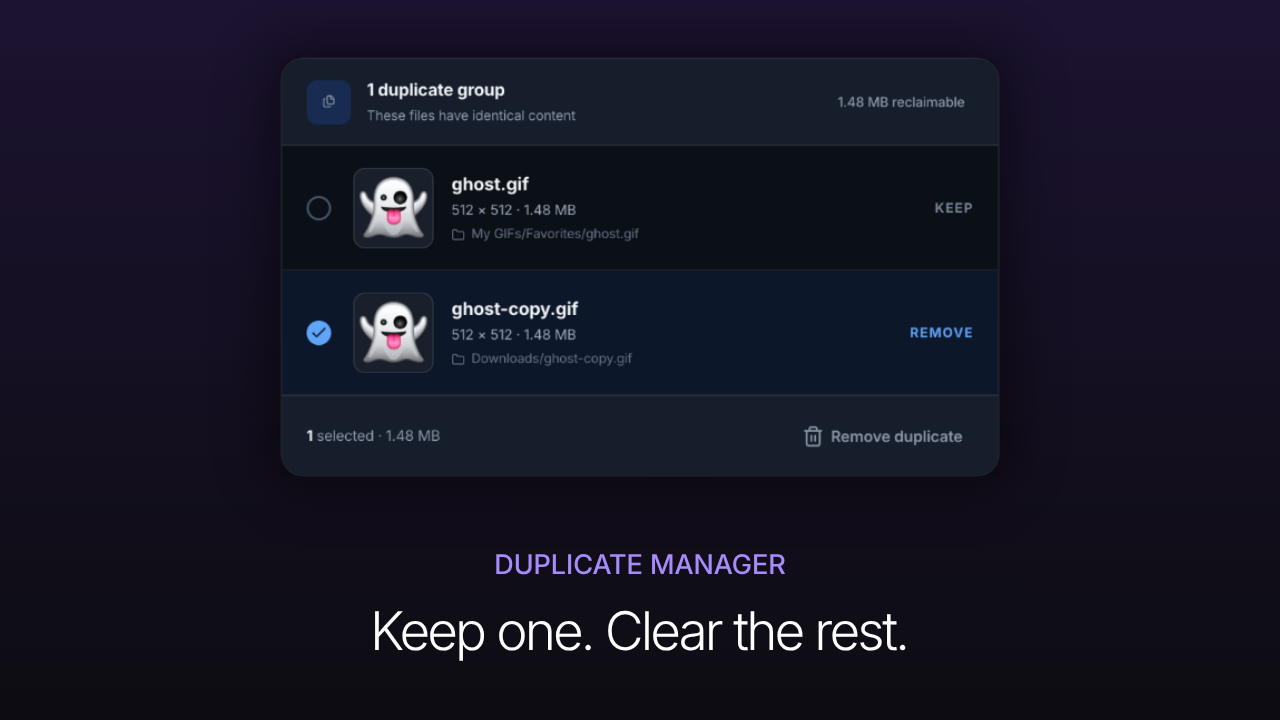
Duplicate GIFs are easy to collect. You save the same reaction twice, copy a folder to a new location, or download a file you already have under a different name. Each copy looks harmless, but together they make search results noisy and waste storage.
GIF Directory's Duplicate Manager gives you a focused way to clean them up: review files with identical content, keep the copy that belongs in your library, and remove the extra.
Find matching content, not matching filenames
Duplicate filenames are not reliable. ghost.gif and ghost-copy.gif may contain the same animation, while two files named reaction.gif may be completely different.
Duplicate Manager groups files by identical content. That means renamed or relocated copies still appear together, giving you a useful comparison instead of a list of similar-looking names.
Choose which copy stays
Each duplicate group shows the information you need before removing anything:
- filename
- dimensions and file size
- folder location
- total reclaimable space
Check the paths first. Keep the file in the folder that fits your library structure, then select the extra copy for removal. This is especially helpful when one file lives in your organized GIF collection and another is still sitting in Downloads.
Remove one duplicate at a time
Cleanup works best as a deliberate review, not a race. For each group:
- Compare file locations.
- Decide which copy is the original you want to keep.
- Select the unwanted copy.
- Confirm the space that will be reclaimed.
- Remove the duplicate.
The remaining GIF stays exactly where it was, so your folders and existing workflow remain intact.
Clean duplicates before reorganizing
Run Duplicate Manager before a large rename, import, or folder cleanup. Removing identical files first gives you fewer items to sort and prevents the same reaction from appearing several times in search.
If you are bringing in a large collection, pair this cleanup with the batch update workflow. For a library that stays easy to browse afterward, use consistent GIF file naming conventions.
A smaller library is easier to search
Duplicate cleanup is not only about disk space. One trusted copy of each GIF produces clearer search results, reduces hesitation, and makes the right reaction faster to find.
Start with the largest duplicate groups, keep the files in their best locations, and clear the extras. The result is a leaner library without losing any unique GIFs.
FAQ
Does Duplicate Manager compare filenames?
No. It identifies files with identical content, even when their names or folder locations differ.
Which duplicate should I keep?
Keep the copy in your organized library or preferred synced folder. Remove copies left in temporary locations such as Downloads.
When should I check for duplicates?
Check after importing a large folder, restoring a backup, merging libraries, or whenever repeated results begin to clutter search.


